Photography color management controls how color is interpreted and translated as an image moves from capture through editing to print. A controlled workflow uses defined color spaces and profiles so that decisions made during editing can translate predictably across displays and output conditions.
The aim is consistent interpretation rather than identical appearance on every device. Cameras, monitors, and print media reproduce color differently. Color management accounts for those differences throughout the photographic workflow.
What Is Photography Color Management?
Photography color management is the process of maintaining controlled color reproduction as an image moves between capture, editing, display, and final output.
A color space defines how RGB values represent color within an image. Common examples include sRGB, Adobe RGB, and ProPhoto RGB.
An ICC profile describes the color behavior of a device or defined output condition, such as a monitor or a particular printer and paper combination.
A color conversion uses profile information to translate color between different spaces or output conditions while accounting for the capabilities of the destination.
These elements serve different purposes. The working color space describes the image. A monitor profile describes the display. A print profile describes the intended output condition.
How Does a Camera-to-Print Color Workflow Work?
A camera-to-print color workflow carries image data through capture, processing, display, and output while maintaining defined color references at each stage.
|
Stage |
Role in Color Management |
|
Camera |
Records the image data from which color is interpreted |
|
RAW Processing |
Interprets camera-native data as an editable color image |
|
Editing |
Processes the image within a defined color environment |
|
Monitor |
Uses a display profile to render image colors predictably |
|
Soft Proof |
Simulates the intended print condition |
|
|
Converts the image for a specific printer, ink, and paper |
|
Viewing |
Presents the reflective print under real illumination |
Each stage informs the next. If color is interpreted inaccurately at one point in the workflow, later adjustments may be based on an unreliable visual reference.
Manage Color From Camera Capture to RAW Processing
The capture stage establishes the image data that enters the workflow and the starting point for subsequent color interpretation.
Understand How RAW and JPEG Handle Color
RAW and JPEG files enter a color-managed workflow differently.
A RAW file contains sensor data that is interpreted later by RAW-processing software. In-camera settings such as sRGB or Adobe RGB affect rendered files such as JPEG more directly and should not be treated as defining the color gamut of the underlying RAW data.
A JPEG has already undergone in-camera processing. White balance, camera color rendering, and the selected output color space therefore have a more direct effect on the saved image.
White balance remains adjustable during RAW processing. In an in-camera JPEG, the selected white balance has already been incorporated into the rendered image.

@Jiyuan Wang
Maintain Color Through RAW Processing
RAW processing interprets camera-native data and converts it into an image that can continue through a color-managed editing workflow.
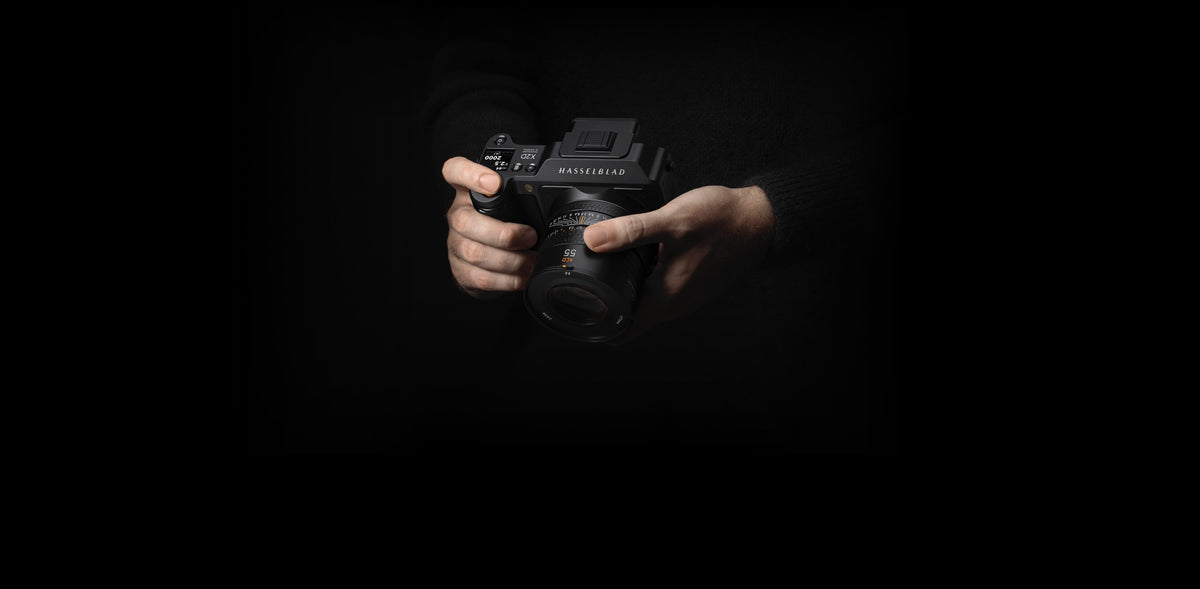
The X2D II 100C uses Hasselblad Natural Colour Solution with High Dynamic Range, HNCS HDR. Phocus Mobile 2 extends the workflow to image review and editing.
The 907X & CFV 100C offers 16-bit color definition, up to 15 stops of dynamic range, and Hasselblad Natural Colour Solution.
These capture characteristics establish the color and tonal information available before the image moves into editing. From that point, the color-managed workflow governs how the rendered image is represented, displayed, converted, and reproduced.
[cta: https://store-na.hasselblad.com/products/x2d-ii-100c]
[cta: https://store-na.hasselblad.com/products/907x-cfv-100c]
Keep Color Consistent Through Editing and Display
Editing requires a defined working color space and a display with known color behavior.
Choose an Appropriate Working Color Space
A working color space defines how RGB values are represented during editing. Wider spaces can retain colors that smaller spaces cannot encode, which can be useful when processing RAW images with extensive color information.
|
Workflow Need |
Common Approach |
|
General web and digital delivery |
sRGB |
|
Some photography and print workflows |
Adobe RGB |
|
Wide-gamut RAW editing |
ProPhoto RGB or another suitable wide-gamut space |
A wider working space does not necessarily produce a better final output. Its value lies in retaining color information during processing when the image may later be prepared for different destinations.
A photograph edited within a wider-gamut environment, for example, may still be converted to sRGB for broad web and digital compatibility.
The working color space describes the image. The monitor profile describes the display.
Changing one does not perform the function of the other.
Calibrate and Profile the Monitor
For color-critical editing, a known and repeatable display condition provides a more reliable visual reference.
Calibration adjusts a display toward defined behavior. Profiling measures and describes how that display reproduces color.
Calibration targets often include white point, luminance, and tonal response. Appropriate settings depend on the display, editing environment, and intended output rather than a single universal target.
Keeping ambient illumination reasonably stable also helps make color judgments more repeatable. Changes in room brightness or color can alter visual perception even when the display profile remains unchanged.
Display luminance can influence print decisions as well. A monitor that is substantially brighter than the intended print-viewing environment can make an image appear brighter on screen than it does on paper.

@Albrecht Voss
Prepare the Edited Image for Print
Preparing a photograph for print requires translating the edited image into a defined output condition. A controlled print workflow keeps the output profile, soft proof, media, and print settings aligned with the same intended output condition.
Select the Correct Output Profile
A print ICC profile describes a defined printing condition. In a photographic workflow, this typically corresponds to a particular printer, ink, paper, and set of print settings.
Paper is part of that condition. Glossy and matte media can differ in paper white, achievable black level, surface characteristics, contrast, and reproducible gamut.
Manufacturer-supplied profiles can be appropriate when they correspond to the printer, ink, media, and settings in use. Custom profiles can provide a measured description of a specific output condition when more precise control is required.
For a profile-managed print workflow, the profile used for soft proofing should correspond to the intended print condition.
Soft Proof the Intended Print
Soft proofing uses an output profile to preview how an image may reproduce under a specific print condition.
Depending on the application and output profile, the preview can help assess:
-
saturated colors
-
shadow separation
-
printable tonal range
-
paper white
-
black level
-
colors outside the destination gamut
Soft proofing simulates an output condition within the limits of the display. It cannot reproduce the physical behavior of ink and paper.
Rendering intent determines how the color-management system handles differences between the source and destination gamuts.
Relative Colorimetric generally preserves colors that can be reproduced within the destination gamut while mapping colors outside that gamut to reproducible values.
Perceptual can adjust color relationships more broadly when translating an image into the destination gamut.
Neither intent is preferable for every image. Comparing both during soft proofing allows the photographer to judge which conversion better preserves the intended color relationships for a particular print.
Make Output-Specific Adjustments
If soft proofing reveals meaningful changes, an output-specific version can be adjusted without altering the master edit.
A matte paper, for example, may reproduce deep shadows and local contrast differently from a glossy paper. Highly saturated colors may also require adjustment when they extend beyond the destination gamut.
When the editing application manages print color through a selected printer profile, printer-driver color management typically needs to be disabled according to the application and printer instructions. This helps avoid an unintended second color conversion.
The selected profile, media, and print settings should describe the same output condition.

@Zhenglin Li
Evaluate the Final Print
Evaluating a photographic print under reasonably consistent viewing light provides a more stable reference for color and tone.
Unlike a monitor, a print does not generate its own light. Its perceived color, paper white, contrast, and shadow depth are influenced by the illumination falling on it.
A color-managed workflow therefore does not seek a physically identical match between a monitor and a print. The more useful measure is whether the print corresponds predictably to the soft proof and preserves the intended tonal and color relationships within the capabilities of the output medium.
A controlled photography color management workflow helps carry the photographer's color decisions from capture and editing through to the final print.
Frequently Asked Questions
Do I Need Color Management If I Only Shoot in RAW?
Color management remains relevant when consistent color across editing and output matters. RAW preserves flexibility before rendering, but the image still needs to be interpreted, displayed through a monitor profile, and converted appropriately for its intended output.
Do All Photo Labs Use the Same Color Management Workflow?
No. Photo labs can differ in accepted color spaces, ICC profiles, automatic corrections, and file-preparation requirements. Check the lab's current specifications before exporting rather than assuming that settings used for another printer or lab will transfer unchanged.
Should I Embed a Color Profile When Exporting a Photo?
In most color-managed workflows, embedding the intended profile helps compatible software interpret the file's RGB values correctly. The appropriate profile depends on the destination, so export settings should follow the requirements of the application, print service, or recipient.